Heads up: This post contains affiliate links. As an Amazon Associate I earn from qualifying purchases, at no extra cost to you. Learn more
Specs are compiled from manufacturer listings and verified buyer reviews and can change over time — please confirm the key details on the product page before buying.
If you or someone you love is straining to read a menu, a letter, or a bank statement on a normal screen, the fix is not more willpower. It is a computer built around magnified, high-contrast text. The right setup turns a 10-point label into text you can read from arm’s length; the wrong one leaves you hunched an inch from the glass. This guide covers the all-in-one desktops, portable magnifiers, and wearable readers that actually solve that problem — and tells you which one fits your daily life.
This guide is built by comparing the manufacturers’ published specifications and the patterns across verified customer reviews, so you get each pick’s real strengths and trade-offs instead of marketing spin.
Some picks here are full computers with giant touchscreens, and others are dedicated magnifiers that do one job extremely well. Knowing which camp you belong in saves money and frustration, so read the next few sections with your own eyesight and daily routine in mind. The short answer: a large touchscreen all-in-one plus a strong accessibility suite is the computer for visually impaired most people should start with.
Top Picks

How To Choose The Best Computer for Visually Impaired
Low-vision buyers often chase processor speed and storage. But two things decide whether you can actually use the machine: how big the text gets and how easy it is to control without a mouse. A fast chip means nothing if you cannot find the cursor on screen. Start with the screen and the input method, then work outward.
Screen size and touch input come first
A larger display lets you run bigger text and still keep a usable amount of it on screen at once. A 27-inch panel gives you far more room for magnified text than a 23.8-inch one, so you scroll less per paragraph. Touch input is the other half: tapping directly on what you want removes the need to track a tiny arrow across the glass. Every all-in-one on this list that offers touch makes navigation noticeably more forgiving.
Magnification range tells you what you can read
Dedicated video magnifiers quote a magnification range rather than a resolution. A range that starts at 2x handles everyday reading like mail and labels, while topping out around 19x to 22x lets you inspect fine print, serial numbers, or handwriting. If you mostly read books and letters, the lower end matters most. If you need to check pill bottles and receipts, the top end is what earns its place on your desk.
Contrast, blue light, and speech output
High-contrast display modes and blue-light reduction help most during long sessions, because eye fatigue builds over hours rather than minutes. Text-to-speech is the other lever: on dedicated readers it can turn a page into spoken words. On a full computer, Windows 11 Pro and Home both carry built-in accessibility tools you can switch on the day the machine arrives. Decide early if you want to read the text yourself at high magnification or have the machine read it to you.
Side-by-Side Comparison
| Model | Best For | Display | Magnification / Zoom | Key Input | Amazon |
|---|---|---|---|---|---|
| Dell 23.8″ All-in-One Desktop★ Best Overall | Full computer with touch | 23.8″ FHD IPS touch | OS-level magnification | Touch + keyboard | Amazon |
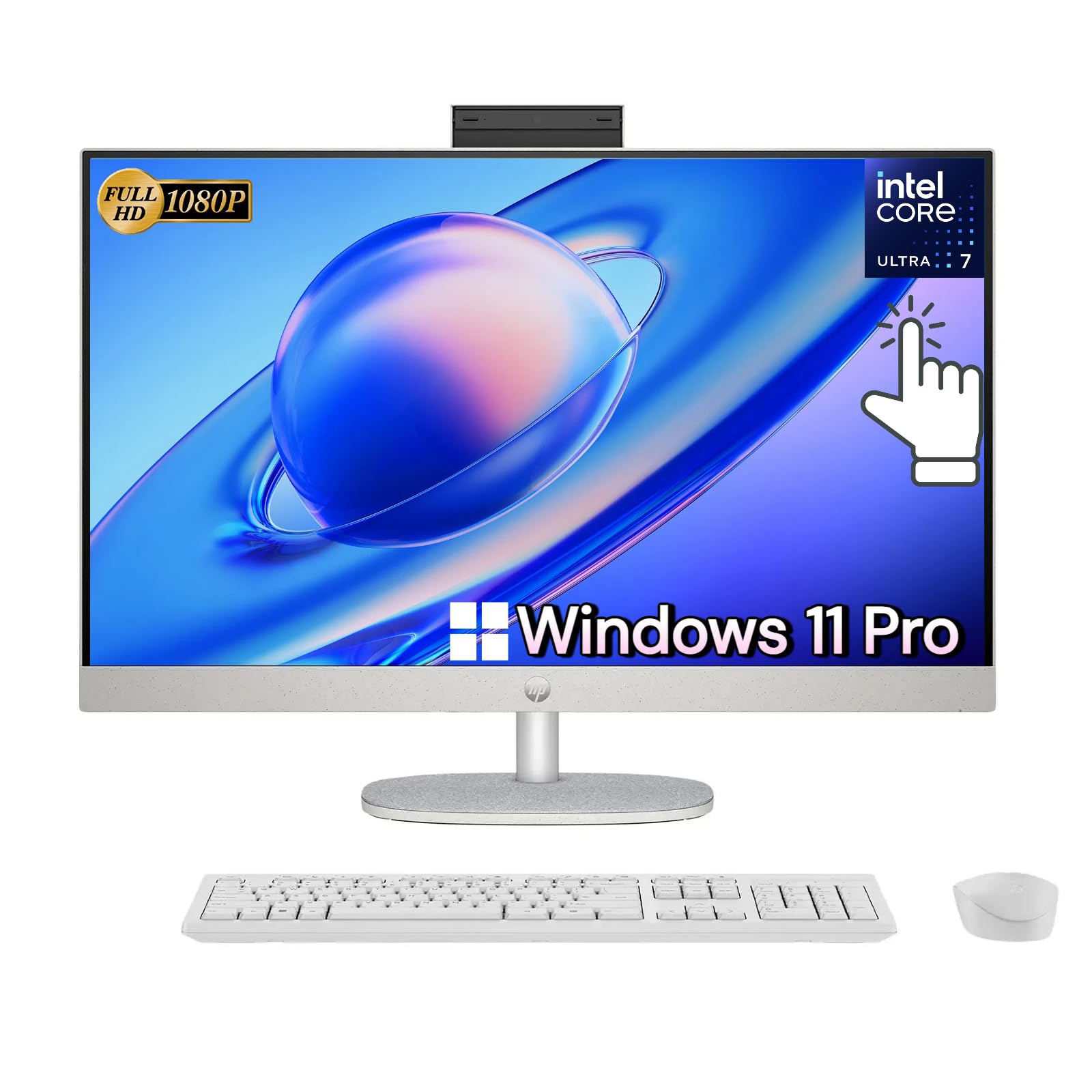
| HP All-in-One 27″ TouchscreenBiggest Screen | Biggest screen for low vision | 27″ FHD IPS touch | OS-level magnification | Touch + adjustable height | Amazon |
| Blackview Laptop Screen Extender | Adding screens to a laptop | 14″ 1080P FHD IPS | OS-level magnification | USB-C / HDMI plug-in | Amazon |
| Eschenbach Visolux Digital HD | Portable handheld magnifier | 7″ LCD, 1024×600 | 2x to 22x | Large physical buttons | Amazon |
| Zoomax Snow 12 | Reading + text-to-speech | 12″ HD display | 19x | Foldable stand + OCR speech | Amazon |
| OrCam MyEye Pro | Hands-free wearable reading | No display | N/A (AI reading aloud) | Hand gestures + voice | Amazon |
Detailed Reviews
1. Dell 23.8″ All-in-One Desktop
Our pick — 4.0+★ from 150+ verified ratings; the strongest balance of quality and price.
A full desktop you can reach out and touch, built around a screen that stays easy on tired eyes.
This is the one to start with if you want a complete computer rather than a single-purpose gadget. You get a 23.8-inch touchscreen with a 1920×1080 pixel resolution, which means you can run Windows’ own magnifier at a comfortable level and still have room for a full sentence on screen. The touch layer does the heavy lifting for low-vision use: instead of hunting a small pointer, you tap the app, the menu, or the link directly.
The display is an FHD IPS panel with 99% sRGB coverage, so colors stay accurate and the image stays readable from an angle rather than fading if you lean back. Dell’s ComfortView Plus is onboard too — a blue-light filter built into the panel that keeps long reading sessions easier on the eyes. Reviewers most often praise how smoothly the whole thing runs day to day. The Core 5 120U chip tops out at 5 GHz, and the machine holds 12 in cache memory — well behind the HP’s 32, but this is a machine for reading and browsing, not video editing.
Setup is genuinely simple, and the box includes a wireless keyboard and mouse if you want them alongside the touchscreen. One honest note: the touch display is the least-loved feature here for a handful of buyers, so if you do not actually want touch, it is extra you are paying for. A one-year onsite service plan comes with it, so a technician can come to you if something fails.
What earns its place
- Touchscreen lets you tap targets directly instead of chasing a cursor
- FHD IPS panel with 99% sRGB stays readable from an angle
- ComfortView Plus reduces blue light for long sessions
- Stand tilts 0 to 20 degrees to fight glare
Where it asks for patience
- 23.8 inches is smaller than the 27-inch HP, so less magnified text fits at once
- 12 in cache memory is a fraction of the HP’s 32
- Touch is wasted if you prefer keyboard-only control
Go for it when: you want one machine that reads, browses, video chats, and takes touch input without setup headaches.
Think again if: you need the largest possible viewing area, in which case the 27-inch HP gives you more room.
2. HP All-in-One 27″ Touchscreen Desktop
Twenty-seven inches of touchscreen you can raise or lower to suit your posture and your eyes.
If the Dell’s 23.8-inch panel leaves you scrolling more than you would like, this HP adds more than three inches of diagonal. That extra space is exactly what low-vision users need: you can push Windows’ magnifier higher and still keep a full line of text in view. The 1920×1080 FHD IPS touch display also carries a three-sided micro-edge bezel, so the picture runs close to the edges and viewing angles reach up to 178 degrees.
The height-adjustable stand is the feature that sets this apart from every other all-in-one here. You can raise the screen to eye level instead of dropping your chin toward the desk, which makes long reading sessions far kinder to your neck. The Intel 12-core Ultra 7-155U chip keeps everything responsive, and 32 in cache memory gives it the room to hold big magnification and screen-reader software without slowing down. Compared with the Dell’s 12, that is a much larger cache — and with a 1 TB SSD you are not going to run out of storage for books, audiobooks, or scanned documents.
The HP True Vision FHD IR camera supports Windows Hello face login, so you can sign in without typing a password you might struggle to read. You also get Wi-Fi 6 and Bluetooth 5.3 for a stable connection and USB-C and USB-A ports running at 5Gbps for external drives. This is the premium pick and it carries the premium spec sheet to match — a serious desktop, not a stripped-down reading box.
The core of the case: a 27-inch height-adjustable touchscreen with 32 in cache memory, Windows 11 Pro, and a 1 TB SSD — the largest viewing area and the most headroom of any all-in-one here.
The trade-off to weigh: it costs more than the Dell, and if you mostly read books at a desk rather than browsing and multitasking, you may be paying for power you never touch.
Best match for: anyone who wants the biggest screen available and the flexibility to set its height exactly where their eyes are happiest.
Not the one if: your space or budget is tight and the Dell’s 23.8-inch panel would already do the job.
3. Blackview Laptop Screen Extender 14″
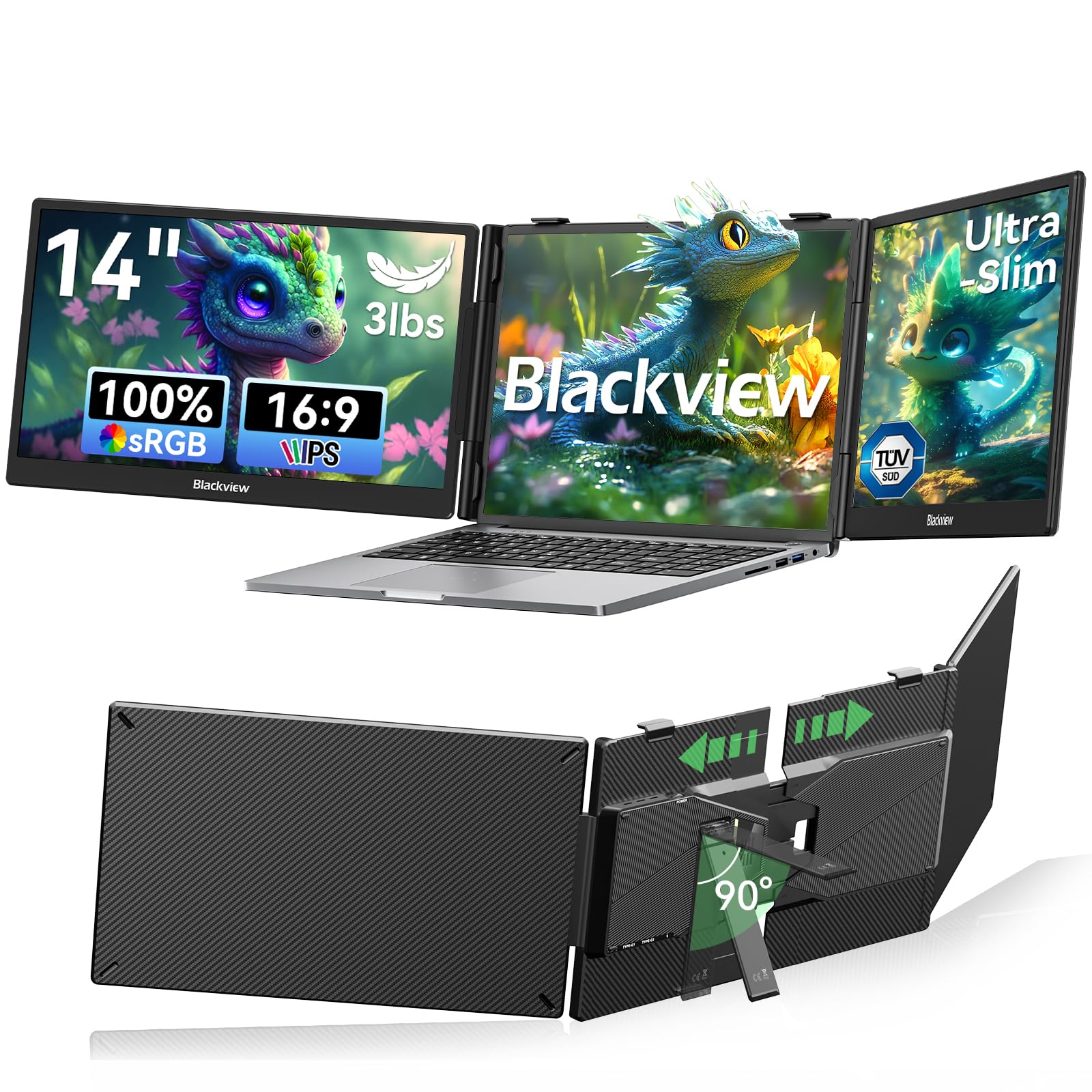
Turn a small laptop into a wide workstation you can read across instead of squinting into.
This one solves a different problem than the desktops: you already have a laptop and cannot see enough of it at once. The Blackview clamps onto any 13-inch to 17.3-inch laptop and adds two 14-inch 1080P FHD IPS screens, which means you can keep a magnified document on one panel and your email or reference on another. Each screen runs 300 nits of brightness and 180-degree viewing angles, so a bright room does not wash out the text.
The eye-care angle is real here: the panels carry TÜV SÜD certification for low blue light and flicker-free output, and the anti-glare coating cuts reflection during long sessions. At just 3 lbs the whole rig travels, and the galvanized steel shell resists scratches. Setup is plug-and-play — no drivers — but here is the catch you should plan for. It works best when your laptop has two full-function USB-C ports, or one USB-C plus one HDMI, and connectivity is the most mixed part of the picture: some units only light up one screen properly. Check your laptop’s ports before you buy.
Where it shines for low-vision road work
- Two extra 14-inch 1080P panels widen your working area
- TÜV SÜD low blue light and flicker-free certification
- Anti-glare coating reduces reflections in bright rooms
- 3 lbs and a scratch-resistant steel shell for travel
The hurdles before you order
- Needs the right ports — two full-function USB-C, or one USB-C plus HDMI
- Some units only power on one screen correctly
- Adds a visible frame and weight to a laptop you may already find bulky
Worth reaching for when: you want the extra real estate on a laptop you already own and have the ports to run two screens.
Pause on it if: your laptop has a single USB-C port, because dual-screen mode will not cooperate.
4. Eschenbach Visolux Digital HD — 7″ Portable Video Magnifier
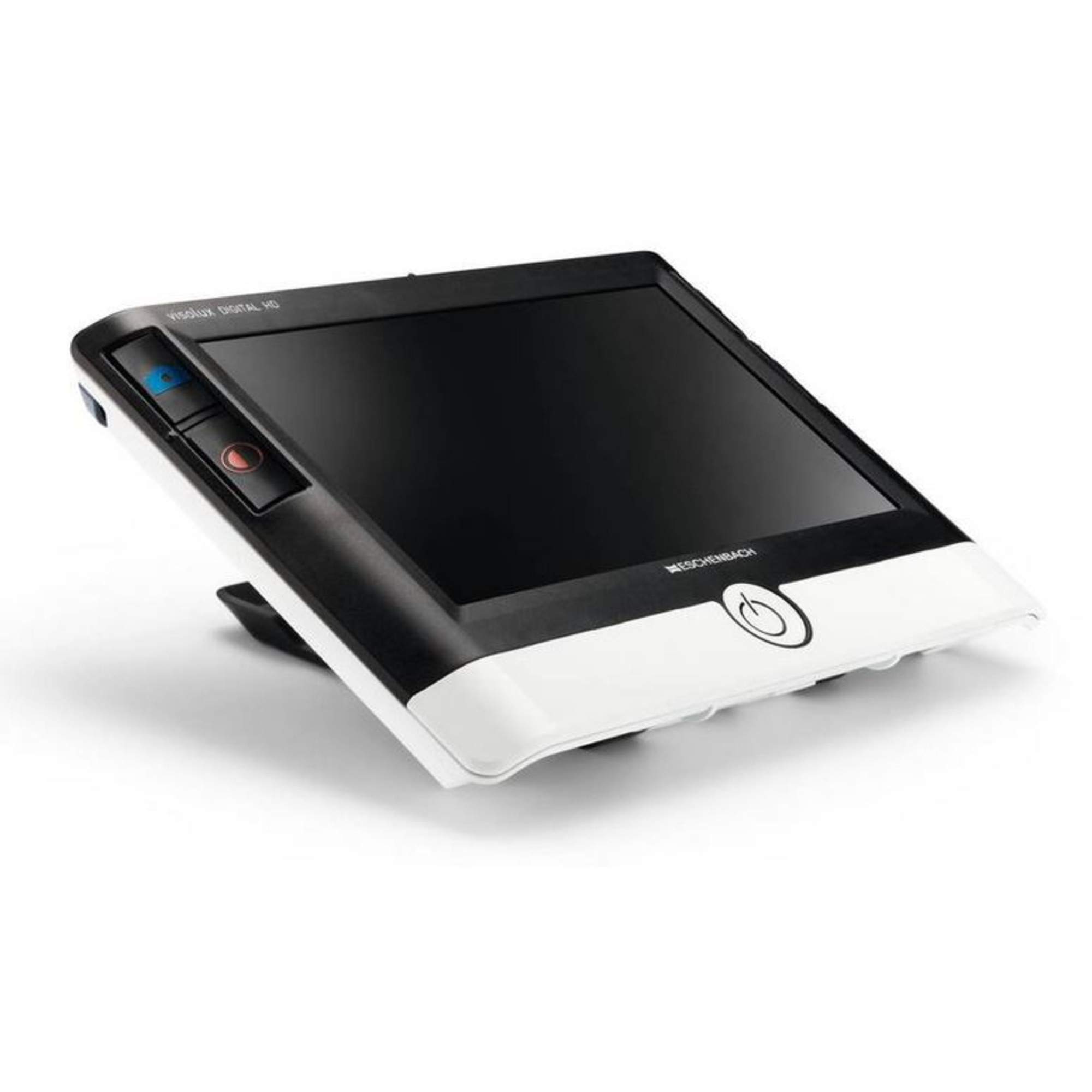
A handheld screen that stretches anything from a pill bottle to a receipt across seven inches of glass.
Not everyone wants a computer at all. If the goal is simply to read whatever is in front of you, this Eschenbach does exactly that with a 7-inch LCD screen and a magnification range from 2x all the way to 22x. The wide range means you can read a normal letter at the low end and then push up to 22x for fine print, handwriting, or a tiny serial number on a device. It runs on large, easy-to-press buttons, which matters when a fiddly touchscreen is the last thing you want to fight.
The panel is 1024×600 with an anti-glare coating, so it holds up on a table near a window. It travels in a zippered crush-proof case that comes with it, so you can carry it to the kitchen table, a doctor’s waiting room, or a friend’s house without worrying about the screen. The lens is glass and acrylic, and the unit weighs roughly half a kilogram, so it sits comfortably in a lap or on a desk. Reviewers agree it is genuinely effective at the one job it was made for: magnifying print.
The honest caveat is that some units develop functional problems, so it is worth testing yours thoroughly in the return window. This is a magnifier, not a word processor — you cannot send email or browse the web on it. Buy it because you want clear, handheld magnification, not because you want a computer.
What it is built to do: magnify what is physically in front of you, from 2x to 22x, on a 7-inch anti-glare screen with large physical buttons.
Where it stops: no email, no browsing, no documents — and some owners hit functionality problems, so test it early.
Pick it for: readers who want a simple handheld device to magnify mail, labels, and small print.
skip it if: you also need to type, email, or use the web — the desktops or the Zoomax do more.
5. Zoomax Snow 12 Foldable Portable Video Magnifier
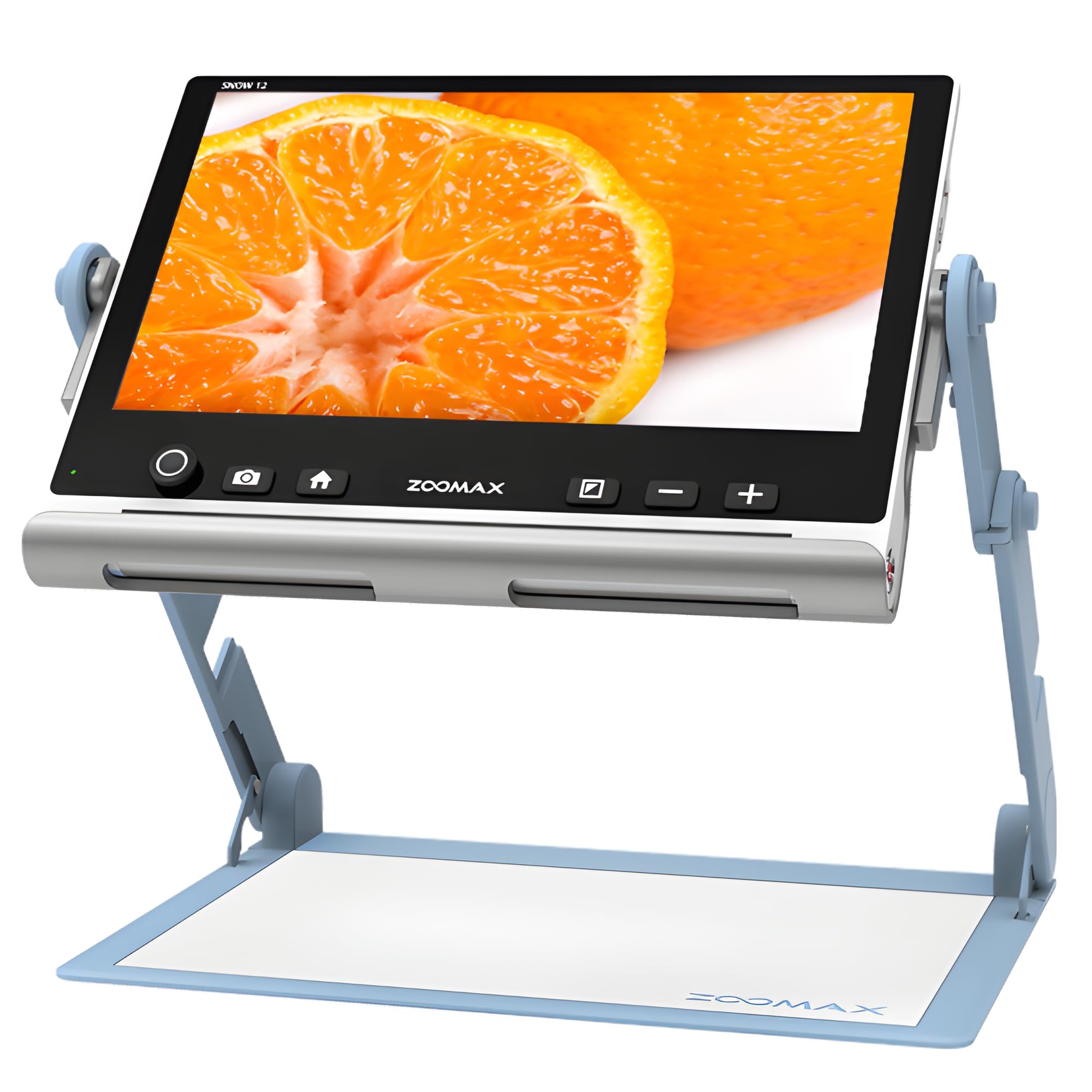
A foldable 12-inch reader that can either magnify text to 19x or speak it aloud for you.
Here is the pick for anyone who wants both options in one device: read it yourself at enormous magnification, or let the machine read it to you. The Snow 12 pairs a 12-inch HD display with an HD camera and 19x magnification. It also adds OCR (optical character recognition, the tech that turns a picture of a page into actual words), so the device can convert text to spoken language in more than 20 languages.
The foldable stand is more useful than it sounds. It holds the device steady at the angle that suits your reading position, then folds flat to store, so it lives on a desk without taking over. It is designed to be carried, so you can move it from the kitchen table to a study or pack it for travel. If hand-held magnification cramps your wrist, the foldable stand is the part that changes daily life.
The honest framing: this is a specialist’s tool with a narrow but deep purpose, and it earns its place when reading and listening both matter to you. It is not a general computer either — there is no word processor or web browser on board. You buy it to read independently, whether that means reading at 19x or listening as it speaks the words back to you.
The reading independence it delivers
- 12-inch HD display with 19x magnification
- OCR converts printed text into speech
- Text-to-speech in over 20 languages
- Foldable stand for stable, adjustable viewing
What you give up
- A single-purpose reader, not a computer
- Premium pricing that reflects the specialty hardware
- Fewer reviews than the mainstream desktops here
Reach for this if: you want to read at deep magnification or have the text spoken aloud, all from one foldable device.
Look elsewhere if: you need typing, email, and browsing too — an all-in-one desktop covers those.
6. OrCam MyEye Pro

A tiny camera on your glasses that reads aloud whatever you point at, no screen required.
The OrCam is the only pick here you do not sit down in front of. It is a lightweight camera that mounts on virtually any glasses frame and reads printed or digital text aloud from any surface in real time. It also recognizes faces, products, and money notes, and it runs on simple hand gestures plus more than 20 voice-activated commands, so there is no keyboard and no menu to hunt through. For someone who finds touchscreens hard to control, the hands-free design is the whole point.
It works without an internet connection and is used across more than 40 countries and 20 languages. The battery is rated for 120 minutes of average use between charges — enough for a morning out or a shopping trip, not a full day. There is no display at all, which means the device’s output is purely audio through an earphone. Build quality and reading features stand out: it reads aloud clearly, and the technical support is a strong point when something needs setting up.
The honest catch is twofold. The value question is the most-debated part of the public record — plenty of people find it a big spend — and it does carry a learning curve before gestures and commands feel natural. A handful of users report it does not always recognize common objects or computer screens. Plan on working through the free online video tutorials to get comfortable, and know going in that OrCam states plainly this device gives you access to visual information audibly — it will not improve your eyesight.
The stand-out draw: discreet, hands-free reading aloud from any surface, with face and money-note recognition, in over 20 languages.
The part to be realistic about: about two hours of battery between charges, a real learning curve, and a premium outlay for what some users find is an occasional sighting rather than a flawless reader.
Where it fits: people who want to hear text, faces, and products hands-free while out in the world, without looking at a screen.
It misses if: you need all-day battery or a device that works the first time with no practice.
Know the Specs
Magnification Range
The range, such as 2x to 22x, tells you how much larger an object can appear. The low end handles everyday text like mail and book pages. The high end lets you inspect fine print, handwriting, or tiny labels on medication. When you compare magnifiers, look at the top of the range first: that is the number that decides whether you can read the small stuff.
Optical Character Recognition (OCR)
OCR is software that reads the shape of printed letters and turns a picture of a page into actual text. Once the device has that text, it can read it aloud through text-to-speech, which is how the Zoomax Snow 12 can speak a page instead of just magnifying it. On a full computer, screen readers do a similar job by reading on-screen text in a synthesized voice.
Touch Input and Display Size
A larger touchscreen lets you run bigger text without constant scrolling, and touch lets you tap directly on icons and links instead of steering a cursor. A 27-inch panel gives you more usable space for magnified text than a 23.8-inch one. If fine pointer control is hard, touch input alone can make the difference between a usable machine and a frustrating one.
Blue-Light Filter and Contrast
Blue-light reduction and high-contrast modes are comfort features, not cures. A blue-light filter like Dell’s ComfortView Plus softens the light that reaches your eyes during long sessions. High-contrast display modes help when low vision makes faint text blur into the background. Expect both to ease fatigue and improve legibility, and set them up before your first long reading session.
Common Questions
Is a large touchscreen all-in-one better than a dedicated video magnifier for reading?
How much magnification do I need to read a book or a letter?
Does text-to-speech actually work well enough to replace reading?
Will a wearable reader like the OrCam MyEye Pro work on a computer screen?
How long does the OrCam MyEye Pro battery last on a charge?
Can I use my existing laptop instead of buying a full all-in-one?
Does a blue-light filter help with eye strain during long reading sessions?
Do I need to install extra software, or does accessibility come built in?
Will my existing keyboard and mouse work if I cannot see them well?
Which pick is best if I travel and still need to read small text?
The Bottom Line
For most people, the computer for visually impaired that makes the most sense is the Dell 23.8″ All-in-One. It is a complete Windows computer, its touchscreen lets you tap instead of chase a cursor, and ComfortView Plus keeps long sessions kinder on your eyes. If you want the largest viewing area and the freedom to set the screen height exactly where you need it, the HP 27″ All-in-One earns its extra room with a 27-inch adjustable touchscreen and 32 in cache memory. And if the real need is simply reading whatever is in front of you, the Eschenbach Visolux puts 2x to 22x magnification in a handheld case you can carry anywhere. Whichever you choose, set up the magnifier and contrast modes before your first long session. The tool only helps once it fits your eyes and your daily routine.
How we choose
We do not accept paid placement. Every pick is matched to a real buyer and a real use-case; we do not hands-on test units.
Sources
Specifications: manufacturer listings and product documentation. Review insights: verified customer reviews, as of November 2026. Pricing: not shown on this page (it changes often); check the current price via the retailer link.
As an Amazon Associate, My Heart Lives Here earns from qualifying purchases. This does not affect which products we feature.