Heads up: This post contains affiliate links. As an Amazon Associate I earn from qualifying purchases, at no extra cost to you. Learn more
Specs are compiled from manufacturer listings and verified buyer reviews and can change over time — please confirm the key details on the product page before buying.
You already know the problem: your thumb is tired, the reward task resets every ten minutes, and the game never stops asking for one more tap. An automated button pusher is a small motorized arm that presses your screen or your keyboard for you, so the clicking happens while you do something else. Below you’ll find the devices worth considering, and the ones where the cheap plastic arm is the whole story.
This guide is built by comparing the manufacturers’ published specifications and the patterns across verified customer reviews, so you get each pick’s real strengths and trade-offs instead of marketing spin.
The first thing to sort out is what you need pressed — a glass touchscreen, a keyboard key, or a wall switch — because each job needs a different kind of arm. This guide covers both families in plain terms, so you can pick the right one for your automated button pusher.
Top Picks

How To Choose The Best Automated Button Pusher
Buyers come to this category with two completely different jobs in mind, and that split decides almost everything. One group wants to hammer a glass phone screen for a game, a live-stream like button, or a reward task. The other group wants to physically nudge a wall switch or an appliance button on a schedule. The tools overlap in appearance and hardly at all in how they work.
Screen tappers and switch pushers are not the same tool
A screen tapper uses a small pad or head that rests on the glass and registers as a fingertip touch. A switch pusher uses a plastic arm that physically flicks a rocker or presses a button on a wall or appliance. If you buy a robot arm hoping to tap a touchscreen, it will not work — several manufacturers spell this out directly in their own product copy, and it is the single most common mismatch in this category.
What click speed actually changes for you
Speed is quoted in clicks per second, and the fastest units here reach a genuinely high rate while the slowest gear can stretch out to one click in 60 seconds. A fast setting suits repetitive game tapping. A very slow setting suits a task that only needs a nudge every minute or so. The important part is whether the speed is adjustable in steps and whether the device remembers your last setting after it powers off.
Mounting and stickiness decide whether it survives week two
Most of these devices hold on with adhesive or a clip, so the surface you attach to matters as much as the motor. A flat, clean, firm surface holds far better than a curved phone case. If the head shifts a millimetre, the clicks stop landing where you aimed them.
Side-by-Side Comparison
| Model | Best For | What It Presses | Top Click Speed | Power / Connection | Amazon |
|---|---|---|---|---|---|
| Yakboman A2 Screen Auto Clicker★ Best Overall | Phone screen games and reward taps | Touchscreen (Android, iOS) | 33 clicks per second | USB corded | Amazon |
| SwitchBot Smart Switch Button Pusher (Bluetooth)Crowd Favourite | Making a wall switch smart without rewiring | Rocker switches and one-way buttons | — | One 3V CR2 battery, Bluetooth | Amazon |
| SwitchBot Bluetooth Fingerbot for Rocker SwitchesBest for Routines | App and timer control of lights and coffee makers | Rocker switches and push buttons | — | One 3V CR2 battery, Bluetooth | Amazon |
| MOES Fingerbot Plus | Touch-controlled retrofit for gates and appliances | Buttons and switches (not touchscreens) | — | One CR2 battery, Bluetooth | Amazon |
| Pankia Box Auto Clicker | Budget phone-screen tapping | Touchscreen (Android, iOS) | 3 adjustable speed ports | — | Amazon |
| Sesame Bot 2 | Scripted multi-step button routines | Switches and appliance buttons | — | One lithium battery, Bluetooth | Amazon |
| Ne fashion Physical Keyboard Clicker | Keyboard and mouse clicking on a PC | Keyboard keys and mouse | Adjustable | USB | Amazon |
| SENCKIT Smart Switch Button Pusher | Tuya app and timer control on a budget | Rocker switches, toggles, buttons | — | Replaceable battery, Bluetooth | Amazon |
| Pankia Box Clicking Arm | Adding a second arm to a Pankia Box | Keyboard and mouse | Max 5 clicks per second | USB | Amazon |
Detailed Reviews
1. Yakboman A2 Screen Auto Clicker
Our pick — 4.0+★ from 400+ verified ratings; the strongest balance of quality and price.
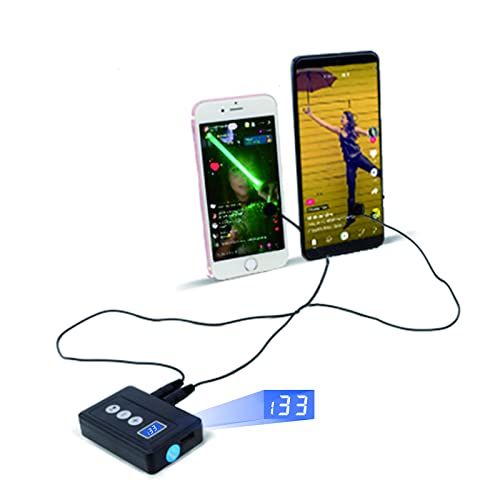
A tiny motor that taps your phone screen 33 times a second so your thumb can retire.
The one number that decides this purchase: 33 clicks per second at the top gear. Yakboman describes that as 5 times faster than the human hand, and it is the reason a grindy reward task stops eating your evening. At the other end the speed dials down to 1 click in 60 seconds, which covers the jobs that only want a nudge. Three setting buttons span 31 speed gears in total, and the unit stores your last-used gear after power off, so you are not re-dialling it every session.
The setup is the clever part. You stick the click head onto the screen, or clip the included screen clip on and let it simulate the tapping. It works across Android and iOS, and Yakboman says one unit can serve up to 4 screen devices at once. It uses “space mapping click technology” instead of a mechanical press, which the maker says means zero noise — a real benefit if you share a room or tap overnight.
Here is the honest trade-off: the physical clicker gets around the anti-cheat software that scans for app-based auto-clickers, but that is a workaround, not permission. Games can and do update their detection. And the build quality is where the mixed notes gather — a corded USB connection means it needs a power source within reach, and the sticky mounting is the part most likely to need re-seating. At 4.0+ stars across 350+ owners, this is the crowd favourite of the screen tappers, and the clicking speed is the thing that wins people over.
What earns it the top spot
- 31 gears from 1-in-60-seconds up to 33 clicks a second
- Remembers your last speed gear after power off
- Designed for Android and iOS, and up to 4 screens at once
- No motor noise, so overnight tapping stays quiet
Where it asks for patience
- Needs the USB cord plugged into a power source
- Adhesive mounting can need re-seating over time
- Won’t stop a game that updates its anti-cheat detection
Buy it for: anyone fighting a repeat-tap task or a grindy mobile game who wants the fastest adjustable speed on this list.
Think twice if: your phone lives far from a USB outlet, or you need something that presses a wall switch instead of glass.
2. SwitchBot Smart Switch Button Pusher (Bluetooth)
The little arm that reaches the bedroom light switch so you never leave the bed.
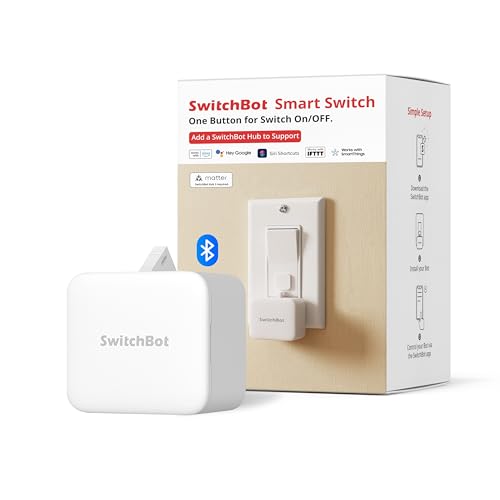
This is the product most people picture when they hear button pusher, and the numbers explain why. It presses with a maximum force of 8 N — roughly the push you’d give a stubborn light switch — and it does it without a single wire being touched. Bedroom lamps, fans, coffee makers, appliances you’d rather not walk over to: the arm flicks the rocker for you. Note the word rocker. Toggle switches, mini switches, touch panels and stiff or aged buttons are specifically listed as out of scope.
Control runs on Bluetooth from the SwitchBot app, and the built-in schedules keep running without your phone nearby and without a hub. A hub, sold separately, adds remote access and voice assistants, and the bot never connects straight to Wi-Fi on its own. Power comes from one replaceable 3V CR2 battery, which is not rechargeable.
The installation advice is worth reading twice. The adhesive holds best on a flat, firm, clean, dry surface kept away from heat, and the manufacturer asks you to let the bond cure for 24 hours before regular use. Skip that and the arm can shift. Bluetooth reach also suffers through walls and metal, so check the mounting spot before you commit. This listing carries the deepest track record in this article, and the recurring gripe is Bluetooth drops rather than the pressing itself.
Why it leads the switch category: an 8 N press and a 24-hour cure window are the two facts that separate a bot that keeps working from one that drifts off the switch.
The follow-up question: whether your switch counts as a rocker. If it’s a toggle or a touch panel, this is the wrong tool and the listing says so plainly.
Worth choosing when: you want a normal wall switch to obey a schedule, and you’re happy controlling it locally by Bluetooth.
Look elsewhere if: your buttons are stiff, aged, or touch-sensitive — the arm simply isn’t rated for them.
3. SwitchBot Bluetooth Fingerbot for Rocker Switches
Two modes in one body: a straight button press, or a pull-tab flick for rocker switches.
Where the pick above leans on its pressing force, this version leans on flexibility. Press Mode handles plain button presses. Switch Mode adds a pull-tab attachment that works a compatible rocker switch. Same 8 N maximum pressing force, same no-rewiring promise, same one 3V CR2 battery that isn’t rechargeable. What changes is the range of switches you can tackle with a single unit.
Setup follows the same drill: mount flat, firm, clean and dry, check arm clearance, then wait the 24 hours for the adhesive to bond properly. Schedules built in the SwitchBot app run on their own once set, so a nightly shutoff or a morning coffee press happens without your phone in the room. Bluetooth is your local control; a compatible SwitchBot Hub, sold separately, open up remote and voice control.
The honest caveat sits with reliability. Some units press flawlessly for months, and some buyers report theirs stops doing its one job — so buy this as a convenience, not as the only way you can turn a light off. Mounting space is the other thing to measure before you order, because the arm needs room to swing. Install it well and it earns its keep on fan remotes and coffee makers alike.
Reasons it earns a spot
- Press Mode and Switch Mode cover buttons and rocker switches
- 8 N of pressing force for a firm, deliberate push
- Schedules run without your phone or a hub nearby
What to weigh before buying
- Reliability is genuinely mixed, so don’t rely on it for anything critical
- Needs 24 hours of curing before you trust the adhesive
- Battery is a replaceable CR2, not a rechargeable cell
Pick this if: your switch collection is a mix of plain buttons and rockers and you want one bot to handle both.
Pass if: the switch you need pressed is a toggle, a mini switch, or a touch panel.
4. MOES Fingerbot Plus

A robot arm with its own touch button, so you can switch it by hand without opening an app.
MOES solved a small annoyance other switch bots leave you with. The Fingerbot Plus has built-in touch buttons on the body, so a fingertip powers the arm on or off — no phone, no app, no digging through menus. That’s a fair trade for a device you also control through the Smart Life app. Its stated job list is broad: computers, TVs, floor robots, garage doors and wall switches, retrofitting whatever you already own. It explicitly does not work on touchscreen buttons, so keep it away from your phone.
Mounting takes seconds with the included Add-on sticker: stick it beside a rocker or button and you’re done, with no tools and no rewiring. It runs on a replaceable CR2 battery, which is included. For voice and remote control you need a MOES Tuya Bluetooth Hub, sold separately — and note that the timing functions also depend on that gateway rather than running purely on the bot alone.
The enthusiasm around this one centres on how quickly you can set it up, and gate openers come up as a favourite use. At 4.0+ stars across 250+ owners it’s sitting comfortably in the mid-range of this category. Go in knowing the hub is the gateway to the clever features, and the bot on its own is a very simple presser.
The standout touch: that manual touch button means guests, family, or a power cut never leave you locked out of your own appliance.
One thing to plan for: buy the hub if you expect voice control or scheduling — without it this is a purely local presser.
Choose it for: rental units, gate openers, and any old appliance you want to smarten without touching the wiring.
Skip it when: you want to press a phone touchscreen — this one is built for physical buttons and switches only.
5. Pankia Box Auto Clicker

Three speed ports, one clicking head, and a phone screen that keeps getting tapped while you look away.
Pankia’s pitch is refreshingly simple. Set the clicking head on the phone screen and it simulates a finger, circling and tapping automatically. Three ports each set their own speed, so you can run different click rates for different apps without re-dialling anything. It’s compatible with any Android or iOS phone, and the maker says every unit goes through clicking tests before shipping.
At 3.5+ stars it sits below the Yakboman on the screen-tapper ladder, and the difference matters. The Yakboman reaches a stated 33 clicks per second; this one publishes three adjustable ports but no top speed figure, so if raw speed is your deciding factor the A2 above is the clearer bet. As a compact, low-cost way to stop tapping, though, it covers the basics — it’s small enough at 0.2 kg to sit unnoticed on a desk and drop into a drawer between sessions.
The honest worry is longevity. Quality is what draws the praise here, but functionality is the split point — some units run exactly as promised, and some stop working. Treat this as a second tapper or an entry point into the category rather than the device you stake a whole game account on.
Suits you if: you want a plain, low-cost screen tapper and three speed settings is plenty for your task.
Not for you if: you need a published top speed or expect years of service from a single unit.
6. Sesame Bot 2
A button-pressing robot you can teach a ten-step routine instead of a single press.
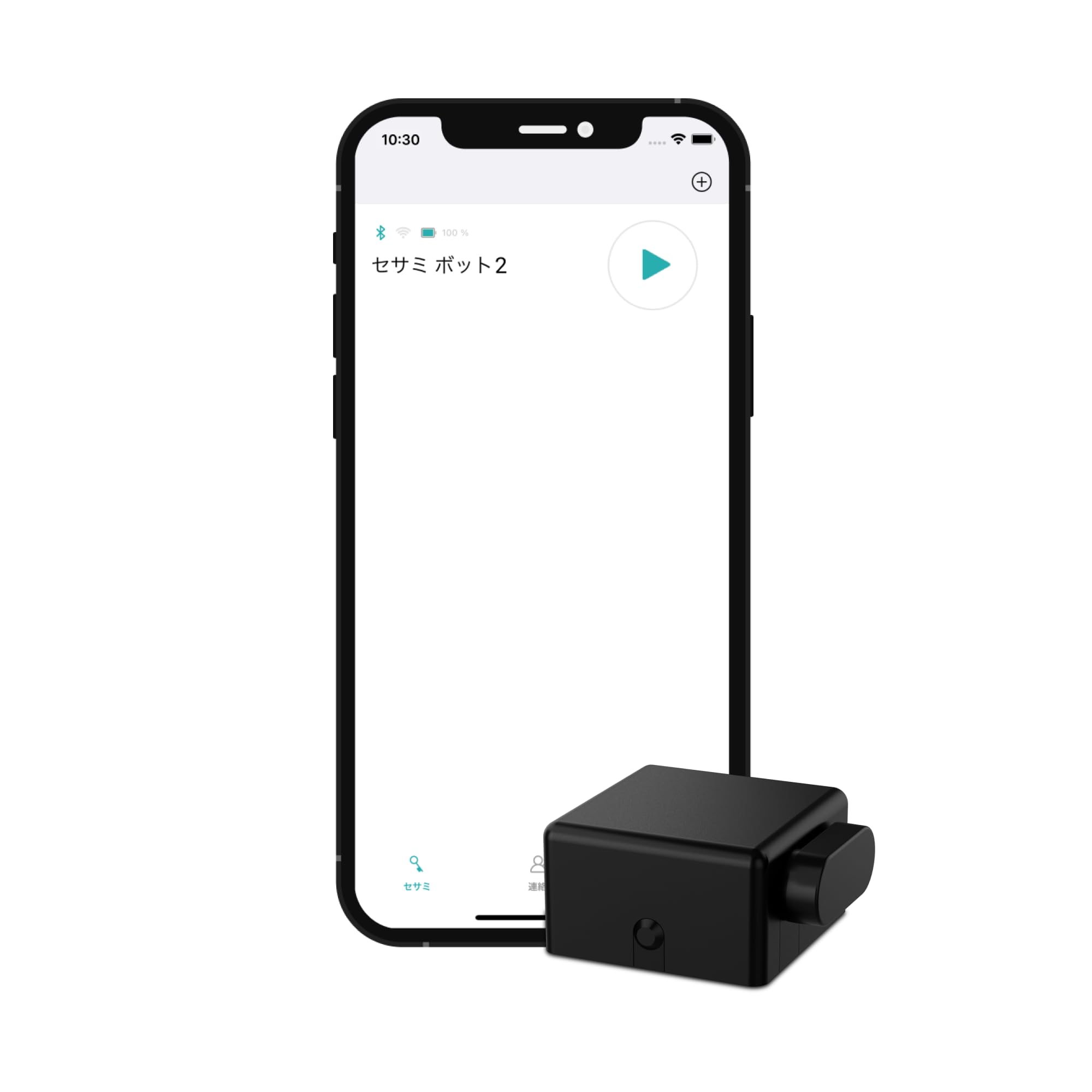
Sesame Bot 2 is aimed squarely at the Airbnb and vacation-rental crowd, but the reason to pick it is more interesting than the label. You can build up to 10 scripts, and each script can hold up to 20 actions. The arm rotates clockwise for one direction and counter-clockwise for the other, and a Sleep setting stops movement so you can nudge the arm by hand. That’s a different kind of tool from a one-press switch bot.
Range is 5 meters over Bluetooth, controlled from your phone, and it can pair with up to 2 supported devices. It also works with the maker’s Touch, Touch Pro, Remote, Remote nano and Open Sensor gear if you already own that family. One lithium metal battery is included, so there’s no charging routine to remember.
Be realistic about what this is. At 3.0+ stars across 50+ owners it’s the least-reviewed option in the premium group, and the audience is narrow — people running short-term rentals who want a script rather than a single scheduled press. If your job is one switch and one schedule, the SwitchBot above does it with far more history behind it. If you want the arm to run a sequence of actions, this is the one that lets you build it.
Where it shines: scripted routines are genuinely rare in this category, and 20 actions per script is a lot of arm movement to chain together.
The realistic limit: Bluetooth-only control at 5 meters means it’s a local bot, and the thin review base leaves less to learn from than the SwitchBot picks.
Made for you if: you manage a rental or want a repeatable multi-step button routine instead of one scheduled press.
Not the one if: you need a simple single-switch bot with a long track record to lean on.
7. Ne fashion Physical Keyboard Clicker

A USB clicker that hammers a keyboard key or nudges a mouse on a Windows or Linux PC.
This one is for the desk, not the phone. You set the height and position of the click head by hand, aim it at a keyboard key or a mouse, and it presses for you at an adjustable speed. The maker also says it can be modified to work as a mouse jiggler or mover. It weighs 280 g, so it sits on a desk without shuffling around. It runs on USB power and works with Linux and Windows machines.
The physical details are note for an office setting. Ne fashion says it’s sturdy and doesn’t break, and that the low noise when working comes with a motor that does not heat up. No heating is a genuinely useful claim for a device pressed against a keyboard for long stretches. A single key is all it presses, which is exactly what you want for a repeat-tap task on a PC.
Now the fair warning, and it’s the biggest caveat in this article. At 3.5+ stars this is one of the weaker listings on the page, and the functionality split is stark — some units do everything advertised, and some only work for a couple of minutes before stopping. Buy this understanding that the price of a budget physical clicker is inconsistency. If a run needs to be reliable, look at a screen tapper for the phone or a SwitchBot for the switch.
Right for: a cheap desk-side tapper for a keyboard key or a mouse on a Windows or Linux PC.
Wrong for: anyone who needs the clicking to run reliably for hours, given how inconsistent the reports are.
8. SENCKIT Smart Switch Button Pusher

Five swappable tool arms in the box, so one bot can tackle more than one switch style.
SENCKIT’s selling point is straightforward: five tool arms ship with the Fingerbot so you can match the arm to the switch. Rocker switches, toggle switches, plain buttons — the maker bills it as high compatibility, with click and press modes, forward and reverse operation, and an adjustable amplitude. It also handles two rising and falling modes. A 3M sticker mounts it beside any rocker or button, and the maker says no tools are needed.
Control runs through the Smart Life or Tuya app over Bluetooth, and you can set the bot to switch things on and off on a schedule even when you’re away. Voice control and remote access need a Bluetooth gateway hub, sold separately — Alexa and Google Assistant both work once that’s in place. A 24-month warranty backs it up.
Set your expectations carefully. This listing is the lowest-rated in the article at 2.5+ stars, and the complaints land on the same two spots: it does not work with touchscreens, and connectivity can drop. Neither is a surprise for a budget Bluetooth switch bot, but both are real. If you want a reliable finger robot, the SwitchBot options above have earned more trust. If you want maximum switch-shape coverage at the entry end of the category, the five arms are a genuine advantage.
The case in its favour
- Five tool arms cover rockers, toggles and plain buttons
- Click and press modes with adjustable amplitude
- 24-month warranty and a low-battery app reminder
What you accept
- Bluetooth connectivity is the recurring weak point
- Will not work on touchscreen buttons
- Voice control needs a separate gateway hub
Best matched to: someone with an awkward mix of toggle and rocker switches who wants the right arm for each.
Look past it if: reliable Bluetooth control matters more to you than switch-shape coverage.
9. Pankia Box Clicking Arm

Not a standalone clicker — this is the replacement arm for an existing Pankia Box.
Read the first line of Pankia’s own listing before you order: this is the clicking arm only, and it cannot be used alone. You need the Pankia box to drive it. If you already own the box, the arm is a cheap way to add a second clicking point or replace a worn one. It clicks a keyboard or mouse, and Pankia notes that a clicking head is a separate purchase if you want to click a phone screen instead.
The arm has three adjusting parts so you can line it up with a keyboard, and it runs on USB like the rest of the Pankia line. There’s one hard limit stated plainly: do not click more than 5 times per second, or the arm will overheat and take damage. That’s a much lower ceiling than the 33 clicks per second the Yakboman screen tapper reaches, so this is a slow-and-steady arm rather than a speed tool. Its compatibility list covers keyboard and mouse, with Windows, macOS and Linux all supported, and a 1-year warranty applies.
At 3.0+ stars across a small review base, this is the accessory in the group rather than the star. That’s not a flaw — it simply isn’t a product most people should buy first. If you’re buying into the Pankia system from scratch, buy the box first and treat this as the spare part.
The one thing to understand: it does not click on its own. Without a Pankia box in your drawer, this arm has nothing to push against.
Speed reality check: 5 clicks per second is the stated ceiling before heat damage, so dial the box down rather than chasing speed.
Buy it if: you already own a Pankia box and want a second arm or a spare for keyboard and mouse clicking.
Don’t start with it: as a standalone purchase it can’t work, so buy the box first.
Know the Specs
Clicks per second
This is simply how many taps the arm delivers in one second, and it decides whether the tool is fast enough for your task. The Yakboman A2 quotes 33 clicks per second at its top gear, which the maker calls 5 times faster than a human hand. The Pankia clicking arm caps at 5 clicks per second before it risks heat damage. A slow gear can be just as useful as a fast one if your task only needs an occasional press.
Maximum pressing force (N)
Measured in newtons (N), this tells you how hard the arm can push against a switch. The SwitchBot bots list a maximum pressing force of 8 N, which is enough for a normal rocker. The reason this number matters is that stiff or aged switches can resist a weaker arm, and the maker of those bots specifically rules out stiff and aged buttons. Check your switch’s resistance before you buy.
Bluetooth vs Wi-Fi on switch bots
Bluetooth is a short-range radio link used for local control, and it is what the SwitchBot, MOES and SENCKIT bots use to talk to your phone. Wi-Fi lets a device reach the internet on its own. Most bots here do not connect directly to Wi-Fi, so remote access and voice control require a separate hub or gateway. Local schedules usually run without that hub, but timing functions on some units still need it.
Battery type and replacement
The switch bots in this article generally run on a replaceable CR2 battery. The SwitchBot units state a 3V CR2 that is not rechargeable, and MOES ships a CR2 included. SENCKIT claims more than a year of working time from its replaceable battery, with an app reminder when it runs low. A replaceable battery means no cable reaching your wall switch, which is exactly why these bots mount where you need them.
Common Questions
Will a button pusher work on a phone touchscreen?
Can a physical auto clicker get around anti-cheat software?
How fast should my button pusher click?
Do I need a hub to control a switch bot with Alexa or Google?
Will a finger bot press a toggle or mini switch?
How is the bot powered and how long does the battery last?
How long should I wait after sticking a bot to a switch?
Can a keyboard clicker also jiggle my mouse?
Do I need to buy a clicking head separately?
Is a button pusher safe to leave on all day?
The Bottom Line
For most people, the automated button pusher worth starting with is the Yakboman A2 Screen Auto Clicker, because 33 clicks per second across 31 adjustable gears covers both the fast gaming jobs and the slow reward ones. If your target is a wall switch instead of a screen, reach for the SwitchBot Smart Switch Button Pusher — its 8 N press and hub-free built-in schedules make it the one with the longest track record. And if you want a bot that can run a sequence of actions rather than a single press, the Sesame Bot 2 lets you chain up to 20 actions in a script. Whichever family you pick, buy for the button you actually own, not the one the marketing photo shows.
How we choose
We do not accept paid placement. Every pick is matched to a real buyer and a real use-case; we do not hands-on test units.
Sources
Specifications: manufacturer listings and product documentation. Review insights: verified customer reviews, as of November 2026. Pricing: not shown on this page (it changes often); check the current price via the retailer link.
As an Amazon Associate, My Heart Lives Here earns from qualifying purchases. This does not affect which products we feature.